
How to customize an agency website template
Turn a template into your agency's website: update the message, portfolio, images and navigation, then check the production build. Includes a source-file walkthrough using Gridcraft.
By Templa · 5 min read · · Updated
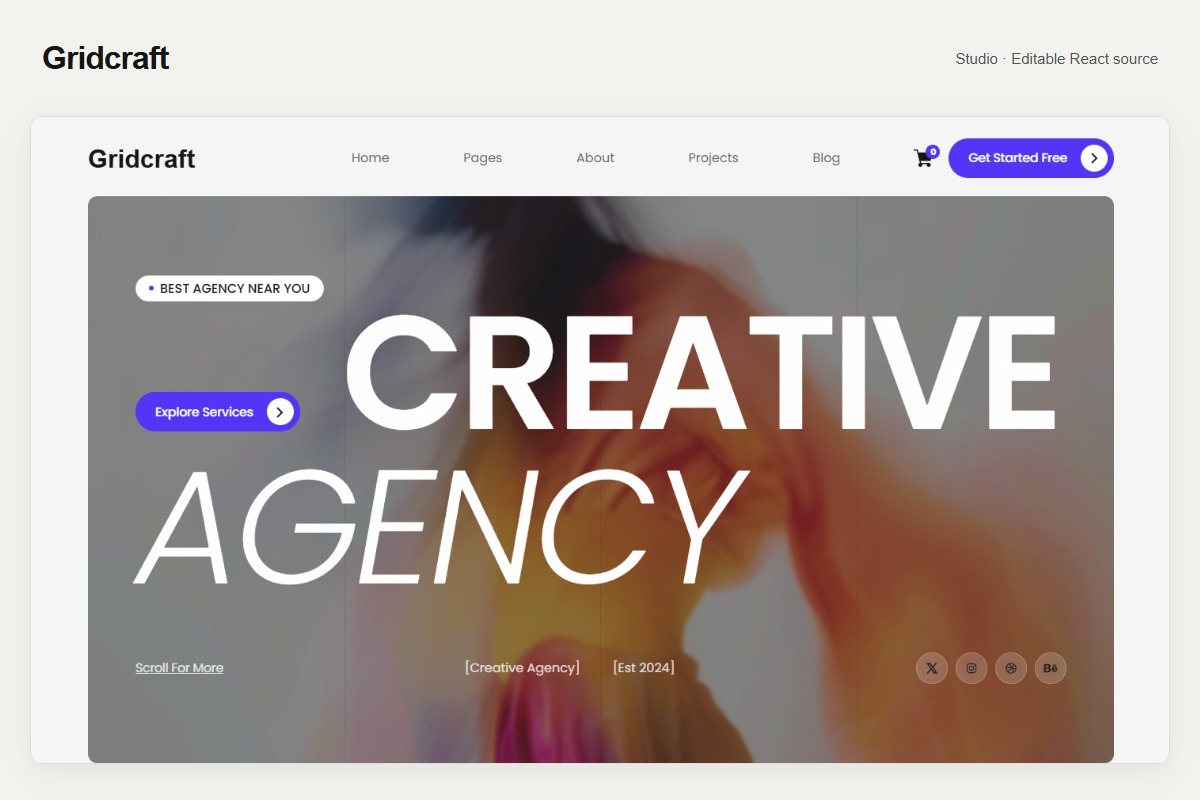
What does customizing an agency template involve?
Customizing an agency website template means replacing its demonstration identity, text and portfolio with your own, adapting its visual styles, and connecting the services your business needs. A source template supplies the presentation; it does not automatically supply a working contact backend, CMS or payment system.
This walkthrough uses files inspected in Templa's Gridcraft React/Vite source download. It is not a Webflow Designer import tutorial. Other templates can have different file names and instructions; check the package you actually downloaded.
Write the brief before editing
Start with three facts: who you help, what work you do, and what visitors should do next. For example, a small identity studio might lead with brand strategy, show three relevant projects and invite a project enquiry. A development agency may need technical project descriptions and a clearer explanation of implementation.
Browse the agency and studio collection. Compare the actual demos for Gridcraft, Focusline and Orbitworks. Choose a structure that fits the work you can show. An impressive animation cannot replace missing project information.
Find the editing files in Gridcraft
Make a backup and run the project locally before editing. The template setup guide explains the installation and build workflow. In the inspected Gridcraft package, the important files are:
| File or folder | What to check |
|---|---|
src/content/siteContent.js | Text and editable attribute values referenced by the JSX |
src/content/media.js | Image, video and responsive source references |
public/ | Local images, fonts, CSS and runtime assets |
src/pages/, src/sections/, src/components/ | Page composition, sections and shared navigation/footer |
src/content/routes.js | Page paths, titles and route-specific assets |
src/styles/ and retained CSS in public/ | Visual styles; inspect the relevant selector before changing it |
Search for the visible words you want to replace. In the inspected source, text_28ad090564 contains the demo brand name and text_1753bdb368 contains the demonstration email. Change the value while preserving its key and JavaScript syntax. Do not rename identifiers just to make them prettier: components may still refer to them.
siteConfig.js also holds identity information, but changing it alone does not prove that every visible brand label or contact link changed. Check the rendered header, footer, contact page and page titles. Search for remaining demo information throughout the source.
Replace demonstration claims with real information
Update the headline, services and main call to action first. Use plain descriptions of what you deliver. Replace sample team members, client quotes, project outcomes, awards, prices and business details. Remove claims you cannot substantiate.
For each portfolio entry, explain the client or project context, your role and the work shown. Use a measurable result only when you can verify it and have permission to share it. If you cannot show client work yet, label a self-initiated project clearly.
Check shared navigation and footer links after editing. Gridcraft's editable content includes attribute values as well as text; visible link wording and its destination are separate checks. If you remove a page or change a path, update inbound links and route configuration together. Retain element IDs used by anchors and motion.
Replace images without breaking responsive sources
In Gridcraft, media.js contains both individual asset paths and responsive source strings. Some images have separate 500-pixel and 800-pixel references alongside their full-size image. Replacing only one reference can leave the old image visible at another screen width.
Use assets you have permission to publish. Add the replacement files to the appropriate folder under public/, then update all references used by that image. Keep the responsive width descriptors consistent with the actual replacement image widths. An image that looks good in a wide hero may need a different crop in a narrow project card.
Test a narrow and a wide viewport. Check faces, lettering and the project subject rather than only whether the image loaded. Write descriptive alt text where the image conveys information; decorative graphics can have empty alt text.
Adapt styles carefully
Change one shared style at a time, then inspect buttons, headings, cards and forms across multiple pages. In the inspected Gridcraft package, src/styles/theme.css contains a focus-outline variable, not a complete brand color system. Some appearance comes from retained local CSS. Do not assume that changing one theme value recolors the entire website.
Keep keyboard focus visible and check text contrast after changing colors. Preserve reduced-motion behavior and make sure reveal animations do not leave important content hidden. Test the mobile menu with your real labels; longer names may need spacing adjustments.
Connect the functions your business needs
A styled form and a success message are not evidence that an enquiry reached your inbox. The inspected Gridcraft README describes forms as local feedback and lists payment, accounts and a production CMS/backend as outside the download. Supply those integrations separately and test their full flow. Never put private API keys in client-side source.
Replace sample policies with documents appropriate to your actual business. Keep the rights and attribution obligations for retained third-party assets; replacing the brand name does not change their licenses.
Build and check the complete site
Use the package's scripts:
npm run build
npm run preview
Gridcraft's inspected build script runs Vite and then tools/write-routes.mjs. Keep that complete build step: it creates route entry documents for inner pages. Deploy the generated dist folder at the hosting root as described by the package. Vite preview is a local build check, not production hosting.
Before launch, open an inner page directly and refresh it. Check assets, navigation, contact delivery, keyboard focus and the mobile layout. Confirm that the deployed site contains your real contact details and no remaining demonstration claims.
If you need implementation help, send Templa a project brief with the template, desired pages and required integrations, or review custom services.
How this guide was prepared
Templa inspected Gridcraft's packaged source files and README for the paths and examples above. The writing was AI-assisted and checked against that source inventory. This is an editing walkthrough, not a claim that a new customized client site was built or performance-tested.
Questions & answers
Can I import this Gridcraft download into Webflow Designer?
The inspected Templa download is editable React/Vite source recovered from a licensed presentation. It is not the original Webflow Designer project; use the source editing workflow described in the package.
Where do I change text and images in Gridcraft?
The inspected package stores editable text and attributes in src/content/siteContent.js and media references in src/content/media.js. Check the JSX usage and all responsive image sources before replacing values.
Does the agency template include working payments and contact delivery?
The inspected Gridcraft package includes presentation and local form feedback. Payments, accounts, a production CMS and contact delivery need separate integrations and end-to-end testing.
What should I test before publishing?
Run the complete build script and preview it. Check direct inner-page visits and refreshes, navigation, image crops on narrow and wide screens, keyboard focus, and any integrations you added.